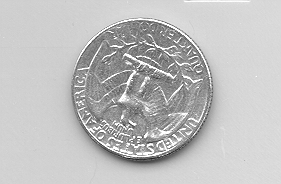
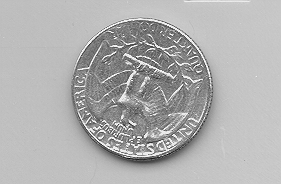
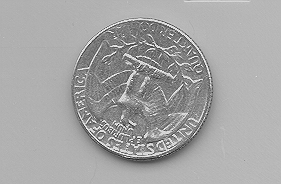
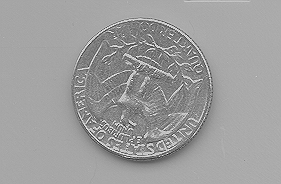
The image looks pretty decent already, so I wasn't exactly sure how much better I could get the contrast. I tried a few things, and got some small improvements, but it's not drastic. The first thing I tried was straightforward unsharp masking, as suggested in the assignment. The results are shown in the table below. The number above each image is mixing parameter L in the equation V = U + L*G, where V is the output image shown below, U is the original image, and G is the result of the gradient operator applied to U. The code for the gradientfilter and the unsharp masking operation code can be found on the matlab code page.
| L = 0.2 | L = 0.5 | L = 1 | |||
 |
 |
 |
|||
| Figure 1. Unsharp masking with gradient operator. | |||||
The images are definitely sharper. I think just a slight addition of the gradient (L=.2) has the best effect. The words embossed around the edge of the quarter are sharp and readable, and contrast remains high.
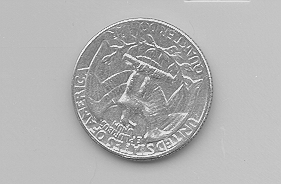
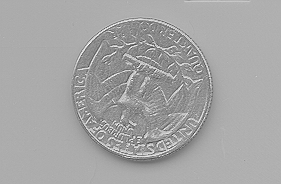
I was interested in whether a different highpass filter instead of the gradient operator (discrete laplacian, as defined in the book) would give better results when used as part of the unsharp masker. I implemented a spatial averaging filter and used it as part of the unsharp masker. The results are shown below for several values of lambda.
| L = 0.2 | L = 0.5 | ||||
 |
 |
||||
| Figure 2. Unsharp masking with spatial average highpass filter. | |||||
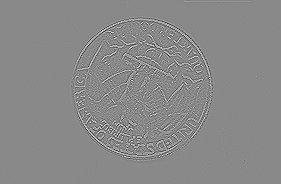
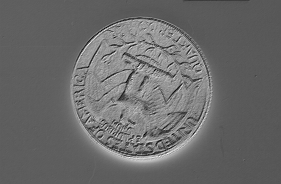
The results aren't as good as with the gradient operator. You can see why if you look at the actual gradient vs. the high-pass spatial average filter, shown below. The gradient definitely brings out the edges in a tighter way.
| Gradient | 2x2 High-pass Spatial Average Filter | ||||
 |
 |
||||
| Figure 3. Different highpass filters for unsharp masking. | |||||
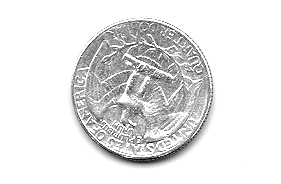
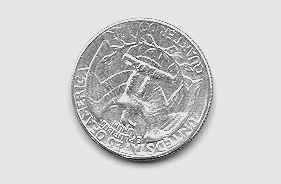
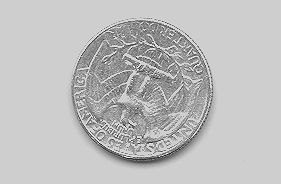
One more experiment I tried was applying a contrast stretching operation first, and then applying the unsharp mask. In the figure below, the image on the left is the image after only the contrast stretching. Grayscale values between .25 and .75 (after normalization to between 0 and 1) were stretched to the full range (0,1). The images on the right are with the unsharp mask applied to this image.
| Constrast stretching only | L = 0.2 | L = 0.5 | |||
 |
 |
 |
|||
| Figure 4. Constrast stretching before unsharp masking. | |||||
I actually think the constrast-stretching-only image looks pretty good. It's very contrasty, probably too harsh. The text on the coin is hard to read. But the detail in the wings of the eagle, for example, are more clear.
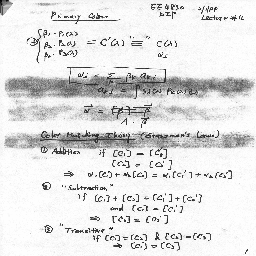
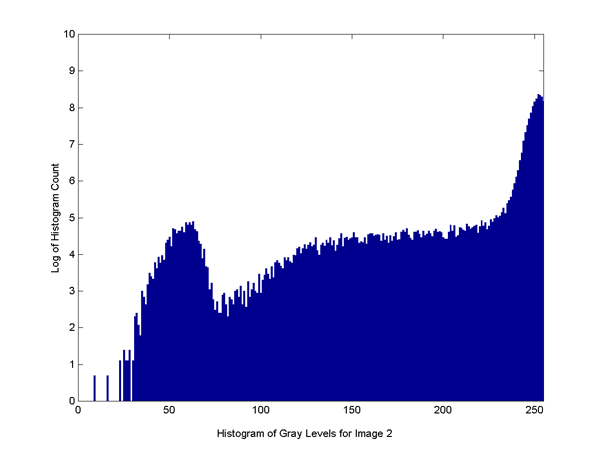
Using a thresholding/slicing scheme (implemented in slice255.m), I mapped pixels with grey levels above 75 to 255 (white), and preserved pixel values below 75. This gets rid of the streaking:
Since it's a text image, it doesn't really seem that histogram equalization is the right thing to do. You really want the histogram to be binary - the background should be solid white, and the text as dark as possible. It's actually better not to map the text to all black, but to keep some shading around the edges for a softer "anti-aliased" sort of look. But histogram equalization would only bring out the noise in the background, so I didn't use it. I also tried some smoothing on the text after the slicing operation to get rid of the streaks, but the results were less readable than the image above.